







The file format – jpeg, png or gif
For convincing web performance, it is crucial to keep image data as slim as possible without losing impact. If you ignore this, you risk high bounce rates and wasting valuable SEO potential. But don't worry: with a few targeted measures, loading times can be minimised – without sacrificing good design.
Images are far more than just visual decoration. They contribute to branding, control emotions – and are (correctly integrated) real conversion boosters. This makes it all the more important to understand which image formats are suitable for what and which technical settings make sense.
The most common image formats on the web
-
JPEG: Ideal for photos, offering a good balance between quality and file size.
-
PNG: Supports transparency; better suited to graphics with few colours.
-
GIF: Outdated, but still relevant for animations (e.g. in newsletters).
JPEG (Joint Photographic Experts Group) is arguably the best-known image format on the web – and for good reason: it offers high compression whilst maintaining high image quality. Colours are rendered realistically, and even with a reduced file size, the image usually remains clear and rich in detail. That is why JPEG is ideal for photos and images with lots of colour gradients.
PNG (Portable Network Graphics) also compresses effectively, albeit in a different way: it reduces the number of colours used, which shrinks the file size. The more compression there is, the smaller the colour palette becomes. The big advantage is that, unlike JPEG, PNG can display transparency – ideal for logos or icons that need to blend seamlessly into a background. This is why PNG is particularly popular for graphics with few colours and transparent backgrounds.
GIF (Graphics Interchange Format) is no longer quite up to scratch from a technical point of view, but is still used for simple purposes. It can also display transparency, but is limited to just 256 colours – which can look unnatural in photos. The big advantage is that GIFs can be animated. That is why they remain popular today for small animations, e.g. in newsletters, chats or as reaction graphics.
Resolution, image size & compression – what really counts?
Distinguishing between file format, image size and file size is essential for web optimisation. Whilst the format describes the type of file (JPEG, PNG, etc.), the image size provides information on the number of pixels (e.g. 1920x1080 px) – in other words, how large the image appears on the screen. The file size, on the other hand, shows how much storage space an image actually takes up.
Many images that come directly from a camera are oversized. This may look stylish, but is of little technical benefit. For most websites, a maximum width of 1920 px is completely sufficient. Anyone with a higher resolution risks slow loading times – a real problem, especially on mobile devices.
Important: Images should never be uploaded large and then scaled in the CMS. This not only has a negative effect on the display, but also unnecessarily inflates the amount of data. It is better to crop the images beforehand and optimise them specifically for the web – so that the quality remains good and the loading time short.
Best practices for image sizes
-
Images for full-screen headers: max. 1920 x 1280 px
-
Thumbnails: 300 x 300 px
-
Blog images: 1200 x 800 px
-
Always: same aspect ratio (e.g. 3:2 or 4:3)
Compression – Preserve quality, save weight
The aim is to achieve a smart compromise between file size and image quality. The more compressed an image is, the faster the page loads – but also the higher the risk of loss of quality. Especially with small images, too much compression can quickly lead to blurring.
With tools such as Photoshop, Squoosh or TinyJPG, you can reduce image quality in a targeted manner without it being immediately noticeable. In Photoshop, this is done quite simply via „Export for Web“. Here, you can adjust the quality (e.g. to 60 %), select the format and define the final image size.
Important: When resizing images, make sure to maintain the aspect ratio – otherwise they’ll quickly become distorted. Also: consistency is key! If you’re constantly switching between formats and aspect ratios, you’ll quickly come across as unprofessional.
Tools & tips for compression
-
Photoshop: Export „Save for Web“
-
TinyJPG / TinyPNG: further compression without any visible loss of quality
-
Aspect ratio: it is best to maintain a ratio of 3:2 or 16:9
-
Beware of scaling in the CMS – better adapt beforehand!
File names & alt text – The SEO boost
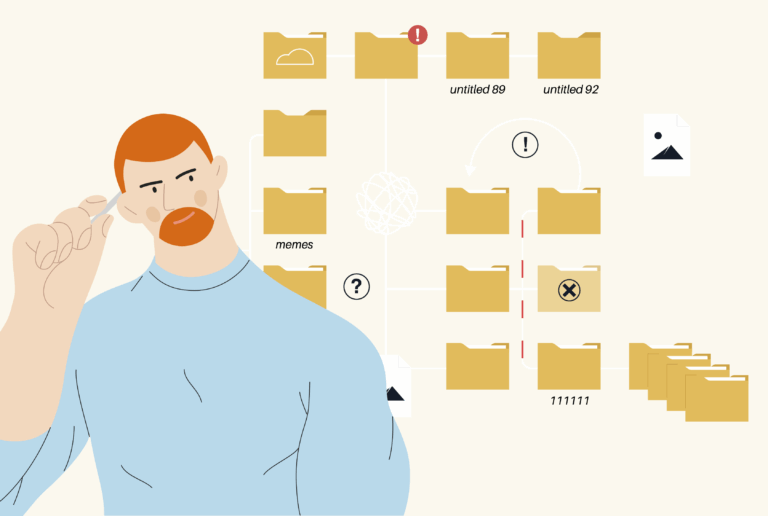
Search engines cannot (yet) see what is depicted in images. They rely on meta information – primarily the file name and the so-called alt attribute. If you approach this wisely, you will not only improve your ranking but also make your website more accessible.
The rules for SEO-compliant file names are simple, but are often ignored: no spaces, no umlauts, no special characters. Instead: short, clear terms with hyphens that precisely describe the image content. The alt attribute should also be filled sensibly – not only for SEO reasons, but also for users with screen readers.
So „IMG_4589.jpg“ becomes „vegan-brunch-düsseldorf.jpg“. Sounds completely different, doesn't it?
SEO tips for image data
-
File name: lower case, with hyphens, without umlauts or special characters
-
Alt tag: short, descriptive text („Breakfast plate with avocado“)
-
Avoid: cryptic camera names or empty alt fields
-
Also think about accessibility – Pictures are more than decoration
Good images, short loading times – no contradiction
If you want to be visually convincing, you don't necessarily have to put up with huge amounts of data. With the right combination of image format, resolution, compression and SEO, images can unfold their full charm – without Google or the user bouncing off. Stay flexible, keep your content technically clean and make your web presence as light as it is convincing.
Are you unsure and want a professional website?
Then 2bu design is at your side.
Whether it’s image optimisation, Divi websites, WooCommerce, Corporate Design or social media – we help brands convey their message clearly and powerfully.




 German
  English